Learn how to create questions for quizzes using the Question Bank. Quiz questions allow parents to test knowledge and reward children with points for correct answers.
Updated April 01, 20263 minutes readBy RewardRoots Admin
📘 Creating Your First Question
Creating a question in RewardRoots is simple. You can either write everything yourself or use Smart Assist to generate a strong starting point in seconds.
Questions you create here can be reused anytime in quizzes for your children.
✨ Choose how to build your quiz
When creating a new question, you have two options:
Write it myself
- Start from scratch and build everything manually.
Smart Assist - Generate a strong starter draft in seconds based on your idea.
You can fully edit anything Smart Assist creates.
Choose_how.png127 KB
🛠 Build a Starter Draft (Quick Draft)
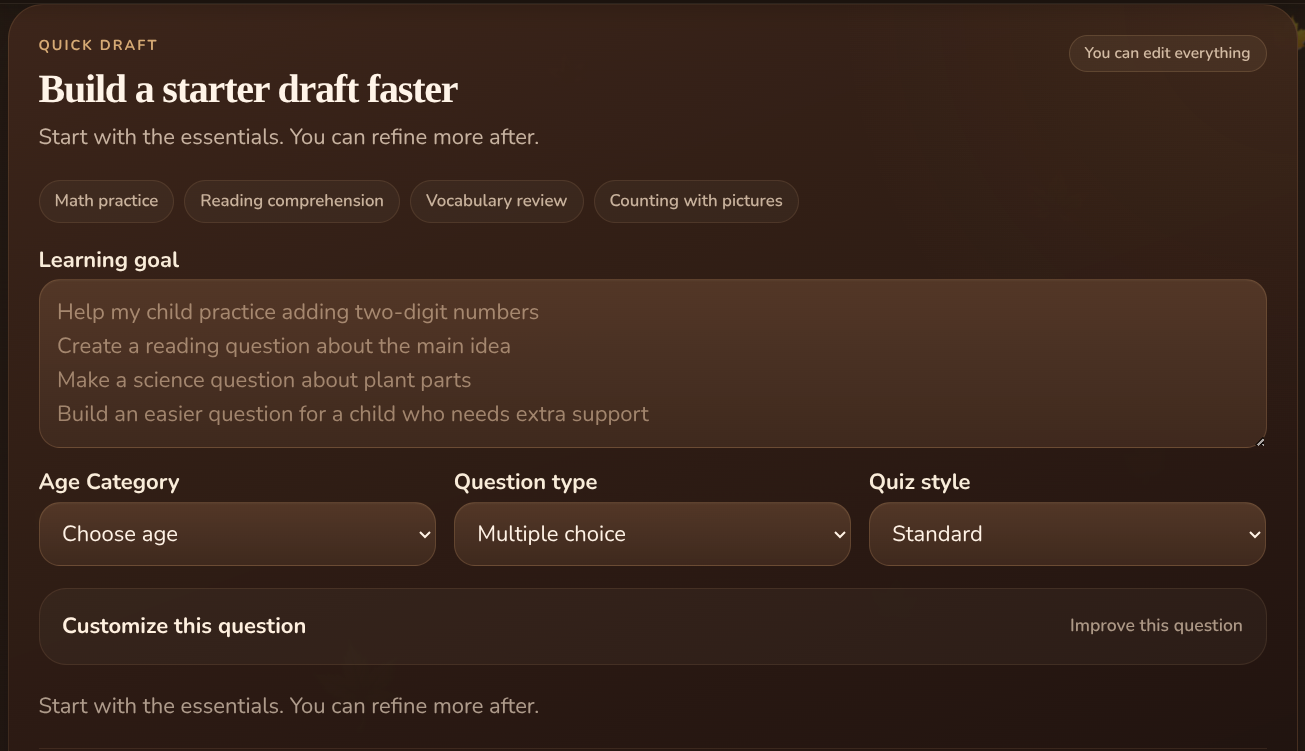
If you choose Smart Assist, you’ll start here.
Enter a simple learning goal like:
Help my child practice addition
Create a reading comprehension question
Make a science question about plants
Then choose:
Age Category
Question type
Multiple Choice or Input
Quiz style
Pre-k
Easy
Standard
Challenge
Customize this questions
Select this section if you want to improve the question even further.
Here you can:
Input what the question is about
Enter the correct answer you want the question to be
Adjust how easy or challenging the wording should be.
Check if you want to use pictures instead of lots of words
Check to "Keep it short and simple"
Use fewer words so it's easier to understand.
Then add anything else you want to add in the last input.
Click Generate draft and RewardRoots will create a ready-to-edit question for you.
This saves time and removes the guesswork.
Smart_Assist_question.png317 KB
⚙️ Customize Your Question (Workshop)
Once you have a draft (or if you started manually), you’ll refine your question here.
Question details - Write what your child will see and answer.
You can also add:
Help text (a hint if needed)
Topic or category
Choose type and difficulty
Multiple choice (best for quick review)
Input (best for recall and deeper thinking)
Difficulty helps organize your Question Bank and build better quizzes.
📈 Improve with Smart Assist
This is where things get powerful.
Smart Assist helps you refine your question without starting over.
You can:
Make it easier or harder
Improve wording
Fix answer choices
Create variations
Suggest visuals
Pick a quick action, review the result, and keep what works.
Everything stays fully editable.
✍️ Add Answers
If using multiple choice:
Add answer options
Mark the correct answer
Optionally add images
If using input:
Enter the correct answer
Kids will type their response instead
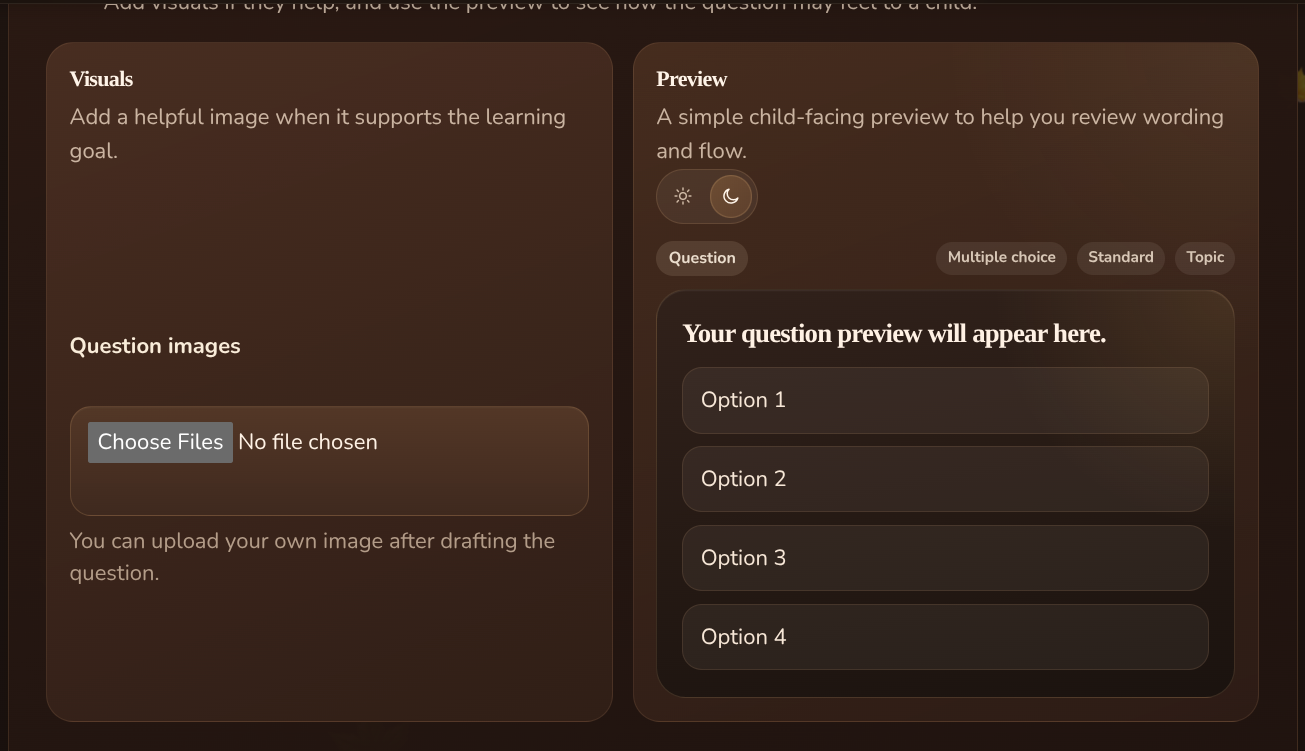
🖼 Add Visuals (Optional)
Images can make questions easier to understand and more engaging.
Great for:
Math visuals
Sight words
Science or geography
Younger learners
You can skip this if not needed.
🔍 Preview Your Question
Use the preview to see exactly how your child will experience the question.
This helps you:
Check clarity
Review difficulty
Improve wording
questions_review.png423 KB
✅ Save Your Question
Click Create Question to save it to your Question Bank.
You can now reuse it anytime in quizzes.
Tips for Better Questions
Keep questions short and clear
Match difficulty to your child’s level
Use images when they help understanding
Use multiple choice for speed, input for recall
Let Smart Assist handle the first draft when possible
You’re Ready to Build
Once your first question is created, you can continue building your Question Bank with more questions across different subjects and difficulty levels.
A strong Question Bank makes it easier to create engaging quizzes your children can learn from again and again.